 orca.flo
Automations
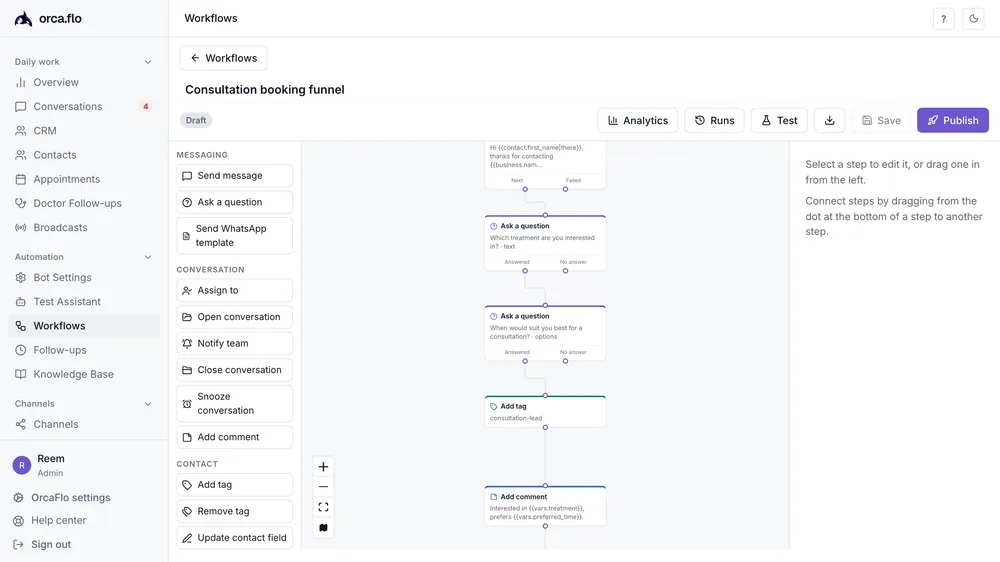
Build your own flows by dragging steps
For the moments you want a fixed path, like collecting a budget before booking, build a workflow. The assistant handles everything else. Workflows run alongside your AI assistant and your follow-ups.
Short answer
OrcaFlo workflows are fixed paths you build by dragging steps onto a canvas: send a message, ask a question, branch on the answer, add a tag, assign the chat, notify your team, wait or update your CRM. Start from a template or describe it in your own words, test it without sending anything, then publish.
Three ways to start
Pick whichever is quickest for you. Nothing runs until you publish.
Describe it
Write what should happen, like you would tell a new colleague, and OrcaFlo builds a draft. Where it needs a price or a link, it leaves a placeholder instead of making one up.
Templates
Ready flows, with the ones for your type of business shown first.
From scratch
An empty canvas and the full list of steps.
Steps you can combine
Send a message, ask a question, branch on the answer, add a tag, notify your team, wait, and more.
Messages
Ask a question waits for the reply, checks it (a number, an email, one of your choices) and saves it.
Conversation and contact
Assign, close or snooze the chat, add a note for your team, change tags, fields or the lifecycle stage.
Logic
Branch by tag, field, answer or channel, check your opening hours, wait, or start another workflow.
Your tools
Send a Calendly or Cal.com booking link, update HubSpot or Zoho CRM, add a Google Sheets row, call your own system, or tell Meta about a lead or sale.
Triggers
Start a flow when a new conversation starts, when someone comes from an ad that opens WhatsApp, or on another event in OrcaFlo, like a tag, a booking or an order.
From your team
An inbox shortcut puts the workflow under a Workflows button in every conversation.
From the assistant
An AI action lets the assistant run a safe workflow mid-chat, like looking up an order, and reply with the result.
Templates for your type of business
Start from a flow that already fits how you sell.
Clinics, salons and gyms
Consultation booking funnel, post-treatment check-in and no-show rebooking.
Online shops
Cash-on-delivery confirmation, abandoned cart reminder and a restock list.
Real estate
Viewing booking, qualify by budget and area, and agent round-robin.
Every business
Welcome and qualify, out-of-hours reply, quote request and review request.
Test, publish and measure
Test mode runs the flow as a dry run. Publish, and later edits stay a draft until you publish again.
Analytics on the canvas
For the last 7, 30 or 90 days: how many customers reached each step, which way they went and how long they took to reply.
Runs
When a step can’t run, the flow takes its failure path and Runs says why in plain words.
Questions people ask
Do I need to code to build a WhatsApp automation?
No. You drag steps onto a canvas and fill them in, start from a template, or describe what should happen in plain words and OrcaFlo builds a draft.
Will a workflow and the AI assistant both reply?
The assistant keeps answering as usual and stays quiet while a workflow waits for the answer to its question. For new conversations you can let the workflow answer the first message instead.
Does testing a workflow send messages?
No. Test shows exactly what would happen, step by step. Nothing is sent and no contact is changed, and test runs aren’t counted in analytics.
How do I stop a workflow?
Open it and click Pause, and it stops starting for new contacts. To take one contact out, open Runs and click Stop this run.