 orca.flo
Getting started with workflows
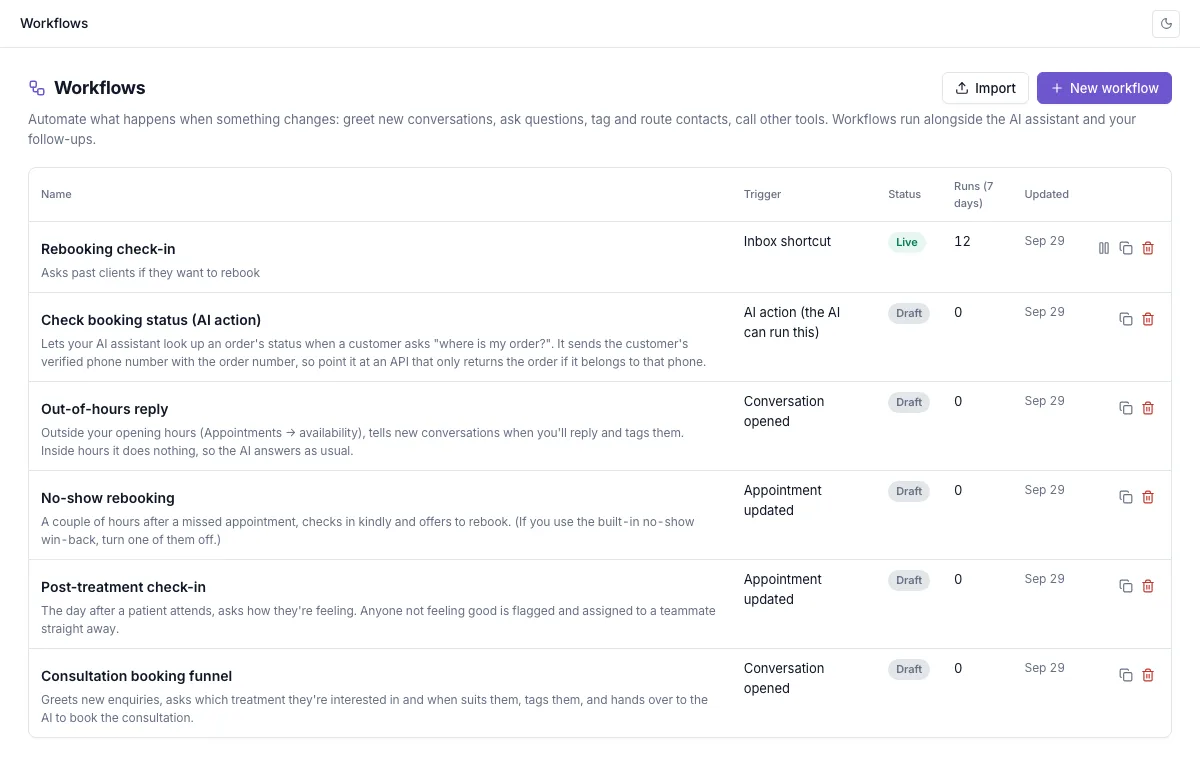
A workflow is a set of steps that runs by itself when something happens. For example: when a new customer writes in, greet them, ask what they need and tag them. Workflows run alongside your AI assistant and your follow-ups.
Updated
Build your first workflow
Open Workflows
In the left menu, under Automation, click Workflows, then New workflow.
Start from something
Describe what you want in your own words (Describe it), pick one of the templates, or choose Start from scratch.
Choose the trigger
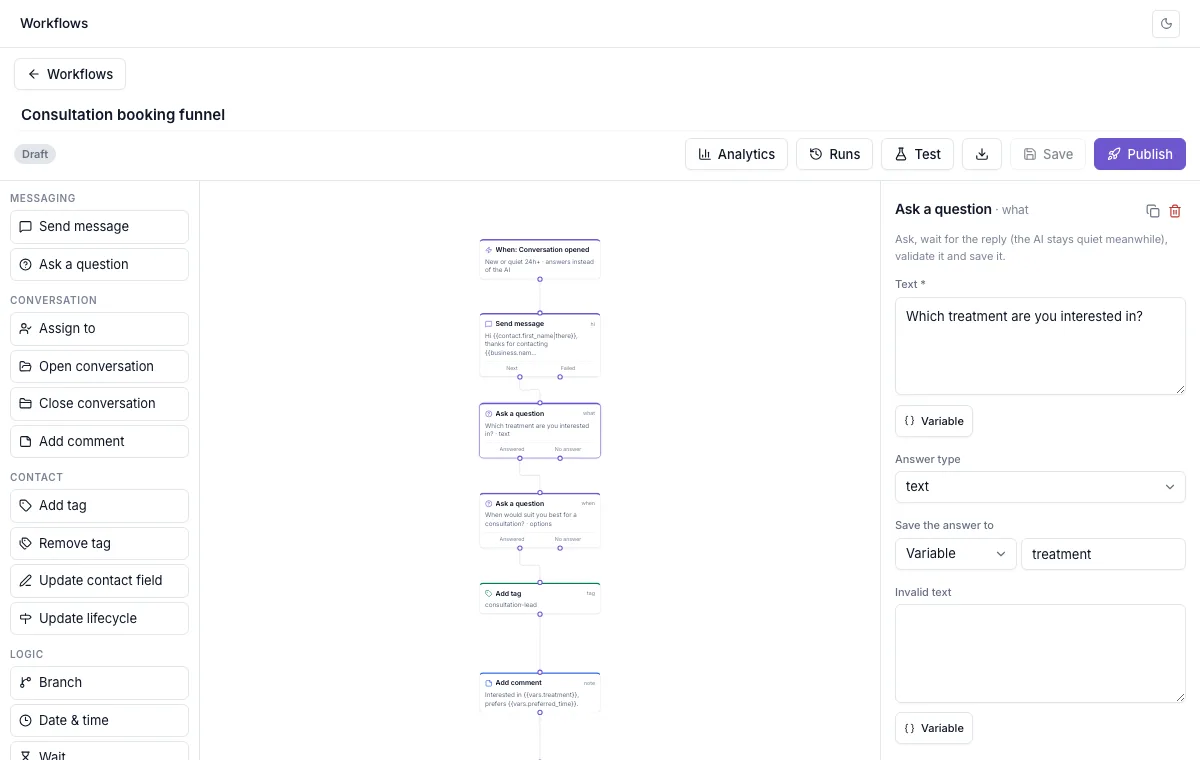
The trigger is what starts the workflow: a new conversation, a tag being added, a new order, a missed appointment, a button in the inbox, and more. Click the top box on the canvas to change it.
Add steps
Drag a step from the left onto the canvas, or click it to add it under the selected step. Connect steps by dragging from the dot at the bottom of one step to another. Click a step to fill it in on the right.
Test it
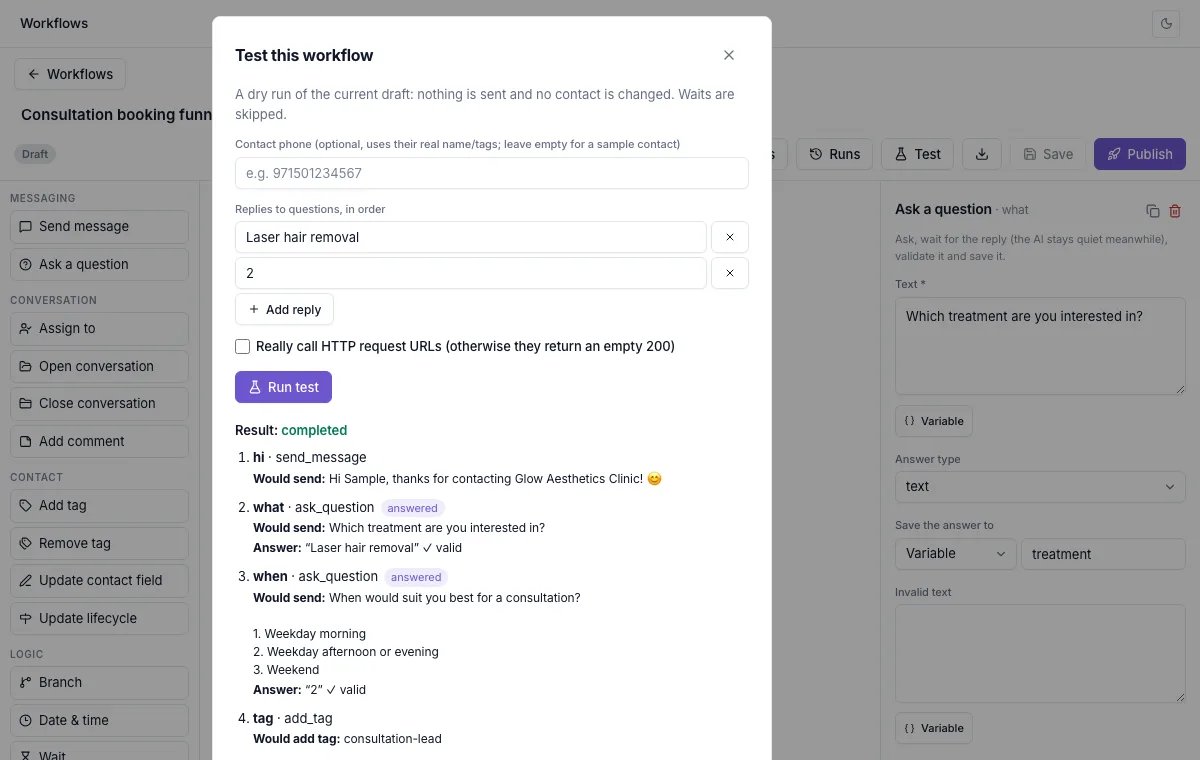
Click Test. You see exactly what would happen, step by step. Nothing is sent and no contact is changed.
Publish
Click Publish. From now on it runs by itself. Changes you make later stay as a draft until you publish again, so you can edit safely.
The steps you can use
Messages
Send message and Ask a question. A question waits for the reply, checks it (a number, an email, one of your choices…) and saves it. While it waits, the AI assistant stays quiet.
Conversation
Assign to a teammate, share chats out in turn, give it to whoever is least busy or to a team. Open, Close (with a reason) or Snooze the conversation, Add comment for your team.
Contact
Add tag, Remove tag, Update contact field and Update lifecycle.
Logic
Branch (different paths for different customers), Date & time (inside or outside your opening hours), Wait, Jump to and Trigger workflow.
Integrations
Send booking link (Calendly or Cal.com), Create/update CRM record and Add CRM note (HubSpot, Salesforce, Zoho CRM or Pipedrive), Add Google Sheets row, HTTP request to your own system, and Tell Meta / TikTok about a lead or sale for your ads. Each one shows up once that tool is connected. See every step and trigger.
Personalize your messages
Click Variable under any message to insert details such as the customer’s first name. {{contact.first_name|there}} shows the first name, or “there” if you don’t know it yet. Answers to your questions can be used later in the same workflow.
Not seeing Workflows?
If you don’t see this in your panel yet, email support@orcaflo-panel.com and we’ll switch it on for your business.
Questions
The AI keeps answering as usual. While a workflow waits for the answer to its question, the AI stays quiet. For new conversations you can let the workflow answer the first message instead of the AI: open the trigger and tick Handle the first message instead of the AI.
Not at the same time. A workflow starts again for that contact only after the previous run has finished.
Open it and click Pause. It stops starting for new contacts. To take one contact out, open Runs and click Stop this run, or use the Workflows button in the conversation.
Yes. Give the workflow the trigger Inbox shortcut. It then appears under the Workflows button at the top of each conversation.