 orca.flo
Connect Google Calendar
Once your Google Calendar is connected, the assistant only offers times when you are actually free, and every appointment it books (or you book in the panel) appears in your calendar straight away. Moves and cancellations update the calendar too.
Updated
Connect it (2 minutes)
Open Integrations
In the left menu, open Integrations. Under Calendars, click Google Calendar, then Connect Google Calendar.
Sign in with Google
Choose the Google account that holds your business calendar and allow the three permissions shown: see when you are busy, see your list of calendars, and add or change the events OrcaFlo creates.
Choose your calendars
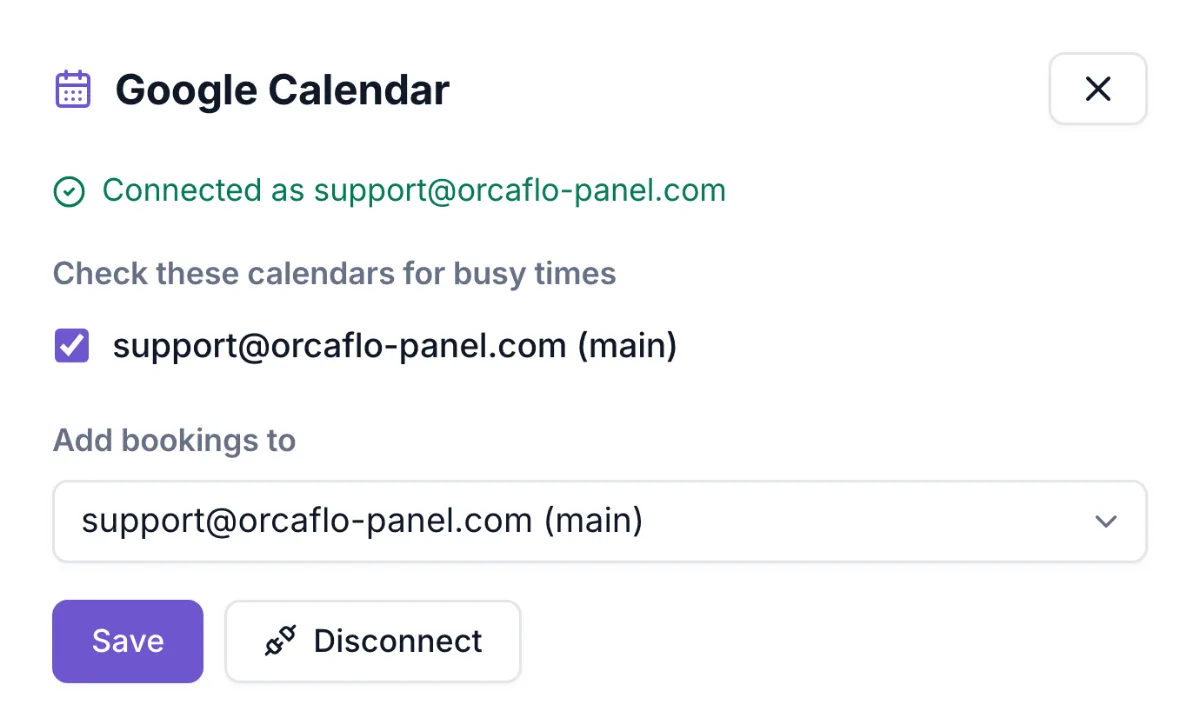
Back in OrcaFlo, tick the calendars that should count as busy (for example your main calendar and a team calendar), and pick the calendar new bookings go into. Click Save.
Check it
Add a test event in Google Calendar, then open Test Assistant and ask for an appointment at that time. The assistant won’t offer it.

What changes once it’s connected
Busy times are respected. Anything in the calendars you ticked (a dentist appointment, a meeting, a day off) hides those times from the assistant, your booking page and the Book appointment form.
Bookings appear in your calendar within about a minute, with the customer’s name, WhatsApp number and service. If the booking is moved or canceled in OrcaFlo, the calendar event moves or disappears too.
More than one booking per time slot? If you take several bookings at the same time (a class, a group session), OrcaFlo adds those events as “free” in Google so they don’t block your other seats. OrcaFlo still counts the seats.
Using staff & services? Each staff member can have their own Google calendar. Their bookings go there, and only their busy times hide their slots.
Your privacy
OrcaFlo only reads when you are busy, never the titles, descriptions or guests of your events, and it only changes events that OrcaFlo created. Your calendar data is never sent to the AI and never used for advertising. See our privacy policy.
To disconnect, open Integrations → Google Calendar → Disconnect. OrcaFlo stops using your calendar immediately and removes its access at Google. Events it already created stay in your calendar.
If you don’t see this in your panel yet, email support@orcaflo-panel.com and we’ll switch it on for your business.
Questions
Yes. Connect with the account that owns the calendar. If your company restricts third-party apps, your Google admin may need to allow OrcaFlo first.
Booking keeps working on your opening hours, and the Google Calendar card shows a note until the connection is healthy again. Nothing is lost: bookings are added to your calendar once Google answers.
Google Calendar is the one calendar OrcaFlo connects to directly. If you use Calendly or Cal.com, connect Calendly or Cal.com instead.