 orca.flo
Book by service and staff member
If different people (or rooms, chairs, machines) offer different services, set them up once and OrcaFlo books the right person for the right amount of time. Customers can ask for anyone available or for a specific person, on WhatsApp and on your [booking page](/help/booking-page).
Updated
Set up your team and services
Open Staff & services
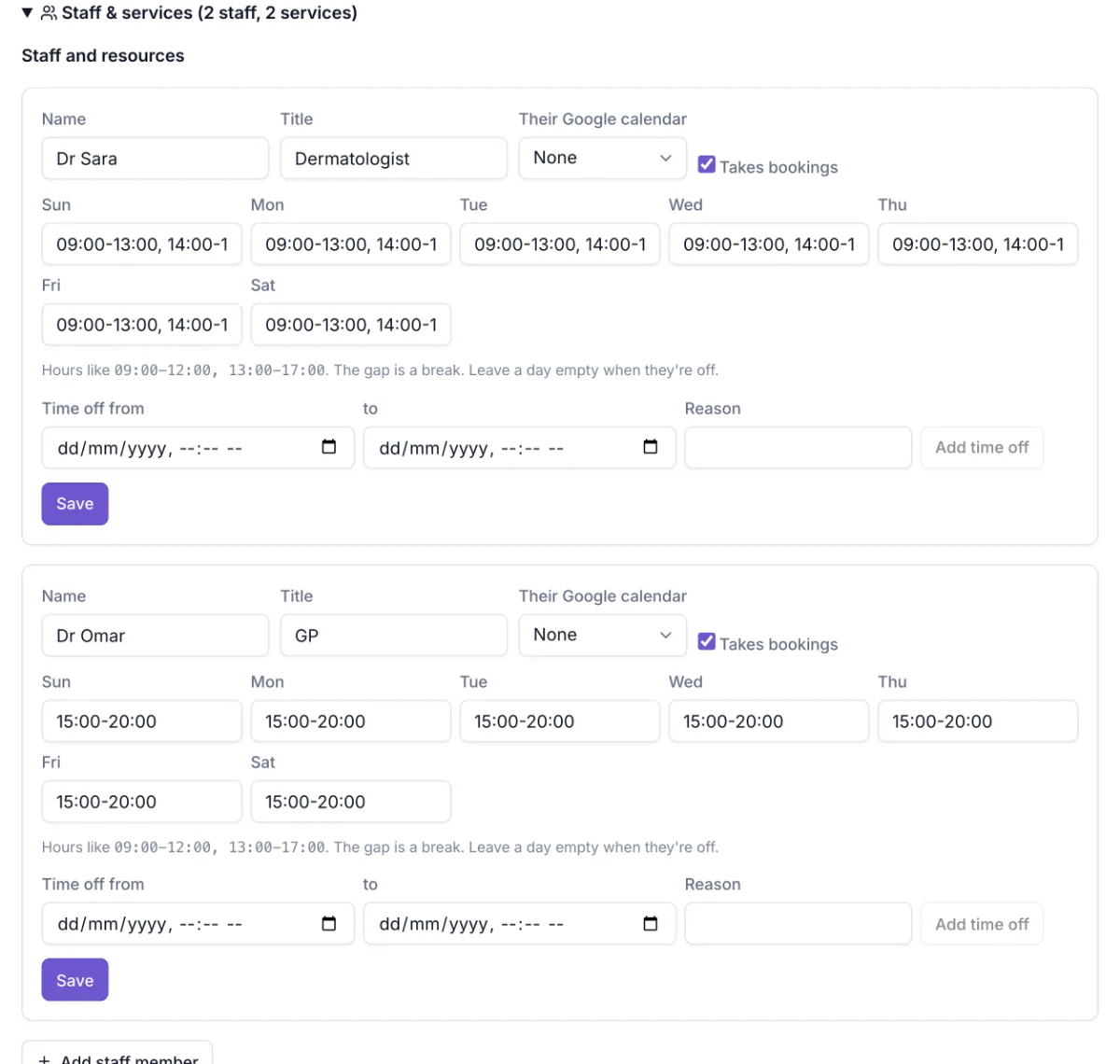
In Appointments, expand Staff & services and click Add staff member.
Hours, breaks and days off
For each person, type their hours per day, like 09:00-13:00, 14:00-18:00 (the gap is their break). Leave a day empty when they’re off. Add holidays or leave under Time off.
Their own calendar (optional)
If they have their own calendar in your connected Google account, choose it under Their Google calendar. Their bookings go there, and their other events block their times.
Add services
Click Add service: name, how many minutes, a buffer after (time to clean up or write notes), price, and tick who can do it.
How customers book
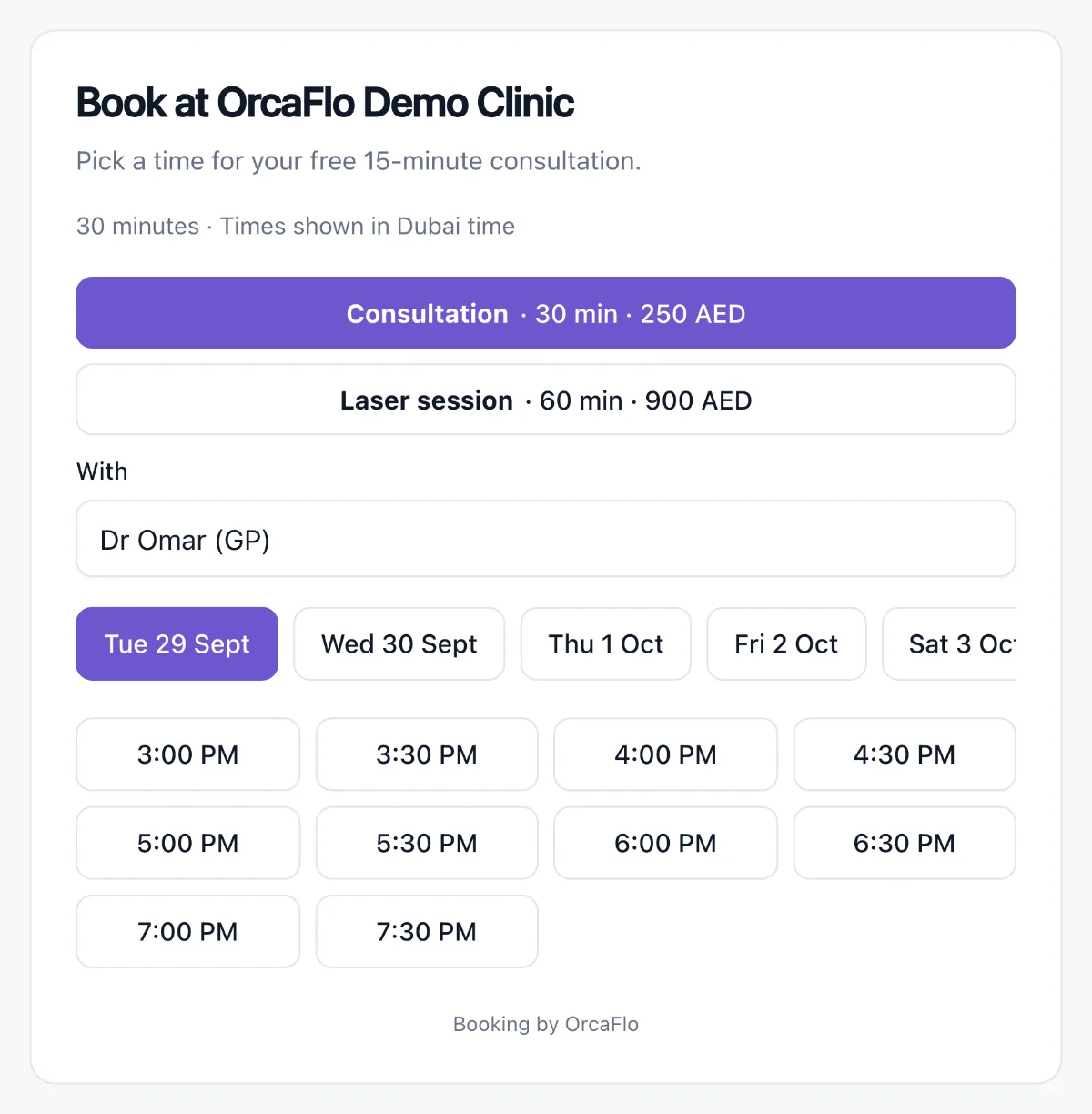
On WhatsApp, the assistant knows your services, prices and who does what: “A consultation with Dr Omar tomorrow evening?” → it offers only Dr Omar’s free times and books him. Ask for anyone, and it offers every open time, choosing whoever is free.
On your booking page, customers pick a service, then “Anyone available” or a person, then a time.
Good to know
A person is never booked twice at the same time, and the buffer after each service is kept free.
Reminders mention who they are seeing: “Reminder: your Consultation with Dr Omar is tomorrow at 7:00 PM.”
Reports → Team shows bookings per staff member (upcoming, attended, no-shows, canceled, value).
If you don’t see this in your panel yet, email support@orcaflo-panel.com and we’ll switch it on for your business.
Questions
Yes. Add them as staff with a title like “Room 2” or “Laser 1” and their available hours, then tick them on the services that need them.
They stay as they are. Staff & services applies to new bookings.