 orca.flo
Reschedule or cancel appointments from the chat
Customers change plans. With this switched on, they can simply ask your assistant on WhatsApp to move or cancel their appointment, and your team can do the same from the conversation without leaving the chat.
Updated
When the customer asks
“Can we move my consultation to Thursday?” The assistant offers open times, and once the customer picks one, it moves the appointment and confirms the new time. “Please cancel my appointment”: it cancels and confirms.
Everything else follows: reminders are rescheduled, your Google Calendar is updated, and you get a notification. The assistant can only change that customer’s own appointments, and only when they clearly ask.
Booked through Calendly? The assistant sends the customer their own Calendly reschedule link, because Calendly bookings can only be moved there. Cancelling works directly.
When your team does it
Open the conversation
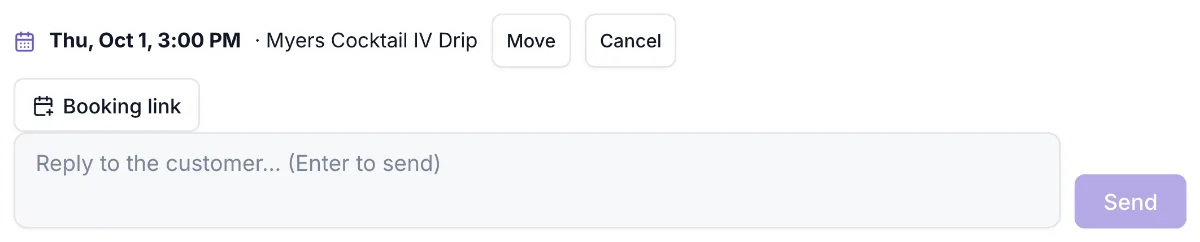
In Conversations, open the customer’s chat. Their upcoming appointments show just above the reply box.
Move
Click Move, pick a new open time and click Move it.
Cancel
Click Cancel and confirm. The customer isn’t messaged automatically when your team cancels, so let them know in the chat.
You can still move, cancel or mark appointments in Appointments as before.
If you don’t see this in your panel yet, email support@orcaflo-panel.com and we’ll switch it on for your business.
Questions
No. It re-checks the time at the moment of the change. If someone else just took it, it tells the customer and offers the next free times.
Not automatically, so send them a short message in the chat. Their reminders will show the new time.