 orca.flo
Your online booking page
Your booking page is a simple web page, for example orcaflo-panel.com/book/your-clinic, where customers pick an open time themselves. It shows the same open times your assistant offers: your opening hours minus existing bookings and, if connected, busy times in your Google Calendar.
Updated
Turn it on
Open Appointments
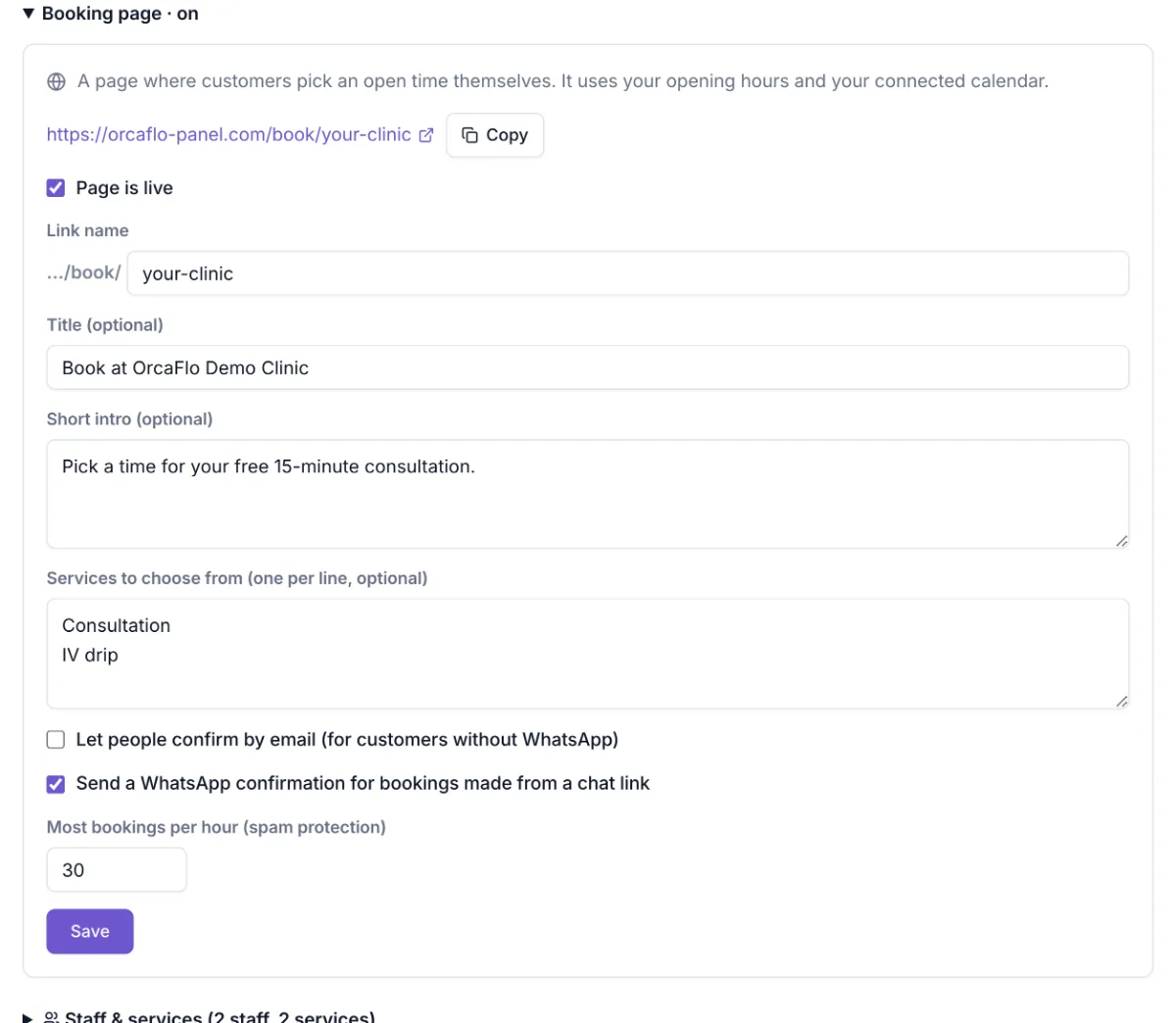
In the left menu, open Appointments and expand Booking page.
Choose your link and texts
Pick the link name (…/book/your-name), a title and a short intro. Optionally list your services, one per line, so customers choose one.
Go live
Tick Page is live and click Save. Copy your link with Copy.
Share it
Put it in your Instagram bio, your Google Business profile and your website. In Growth Tools, a tracked link of type “Booking page” shows how many people it brings. In a chat, the Booking link button inserts a personal link for that customer.
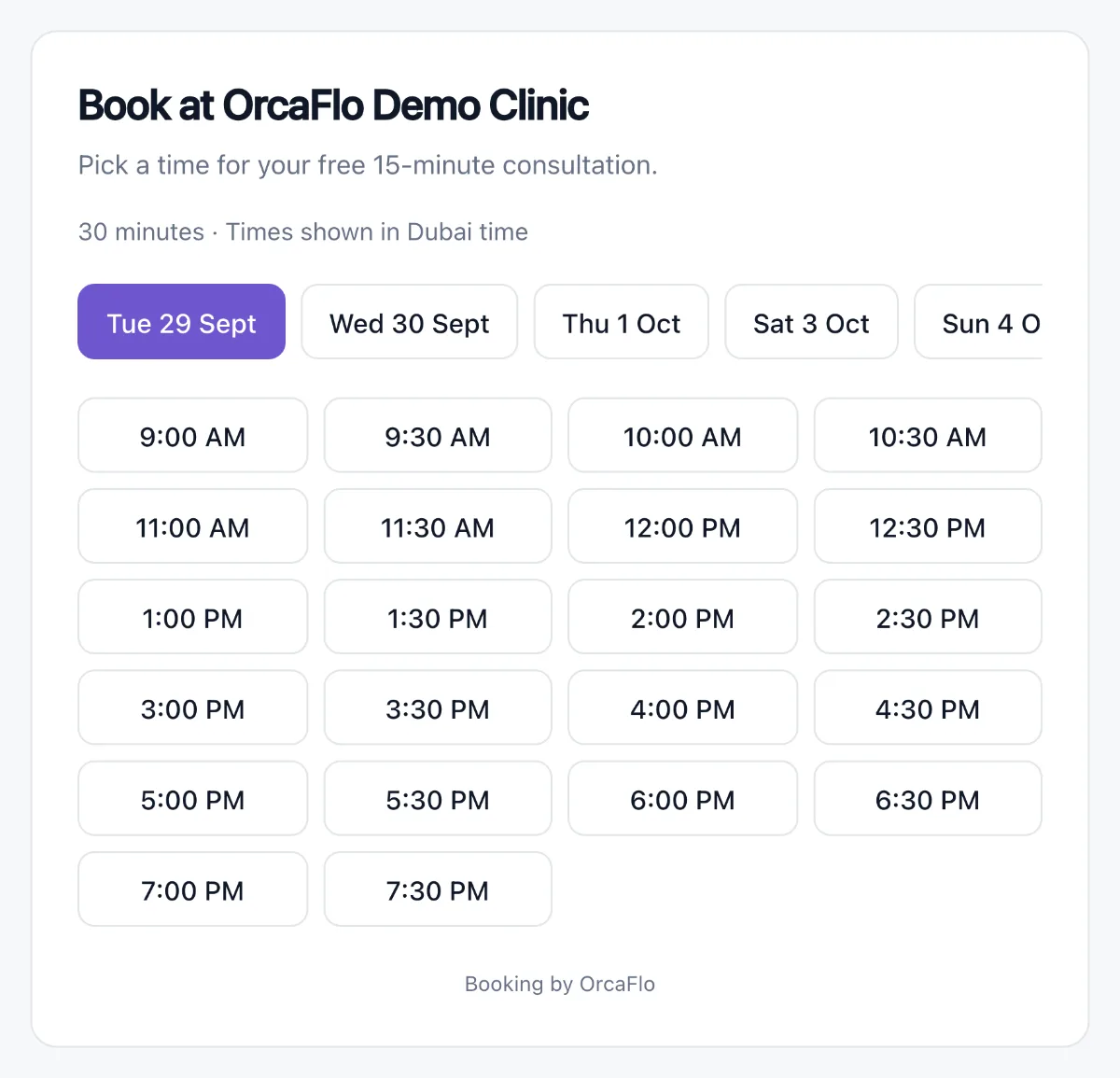
What your customers see
They pick a day and a time, enter their name (and a service if you listed any), then tap Continue.
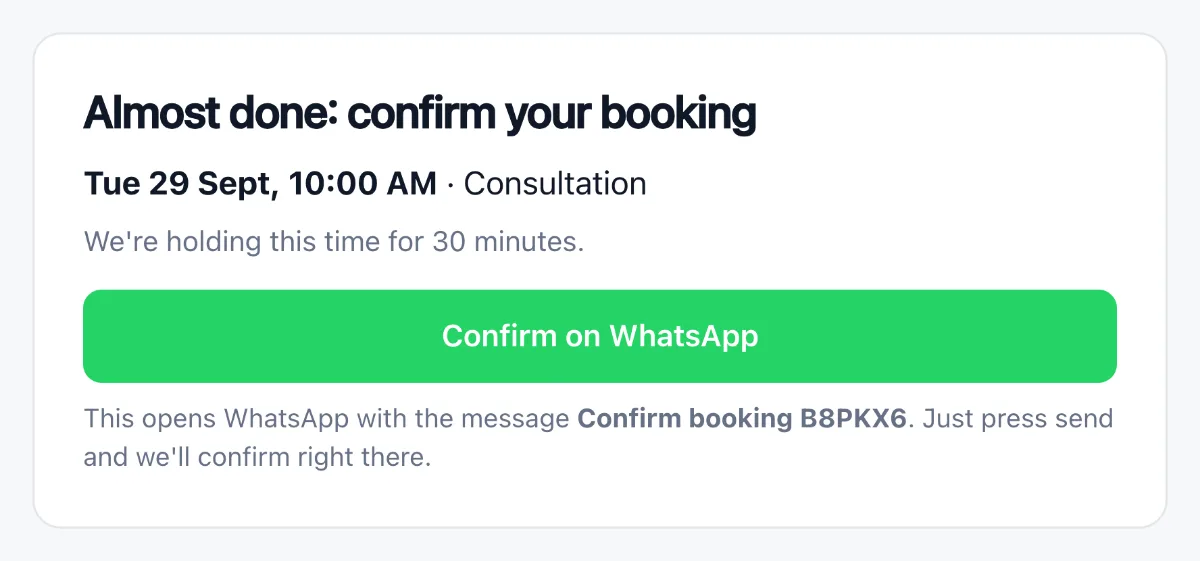
To finish, they tap Confirm on WhatsApp. WhatsApp opens with a short message like “Confirm booking 5UGAZ4” to your number. When they press send, the booking is confirmed right there in the chat, and you get a notification. The time is held for 30 minutes while they do this.
Why confirm on WhatsApp?
It proves the booking is real and that the number is theirs, before anything lands in your calendar. It also means OrcaFlo never sends a WhatsApp message to a number someone typed into a form, which protects your WhatsApp number from spam reports.
Customers without WhatsApp? Tick Let people confirm by email, and they get a confirmation link by email instead.
Customers who open the page from a Booking link you sent in a chat are already known, so their booking is confirmed straight away.
If you don’t see this in your panel yet, email support@orcaflo-panel.com and we’ll switch it on for your business.
Questions
Bookings only become real after the customer confirms on WhatsApp or by email; unconfirmed times free up again after 30 minutes. The page also limits how often one person can try, and you can set the most bookings per hour.
In Appointments and on the customer’s conversation, like any other booking, with the usual reminders. If Google Calendar is connected, they appear there too.
Yes. With staff & services on, customers first pick a service, then “anyone available” or a specific person, then a time.