 orca.flo
Connect Calendly or Cal.com
If you already take bookings with Calendly or Cal.com, keep using it. Once it’s connected, the assistant sends your booking link when a customer wants an appointment, and every booking, reschedule and cancellation appears on that customer’s chat in OrcaFlo.
Updated
Connect it (about 1 minute)
Open Integrations
In the left menu, open Integrations. Under Calendars, click Calendly or Cal.com, then Connect Calendly or Connect Cal.com.
Sign in and allow
Log in to your Calendly or Cal.com account and click Allow. You come straight back to OrcaFlo.
Pick the event to share
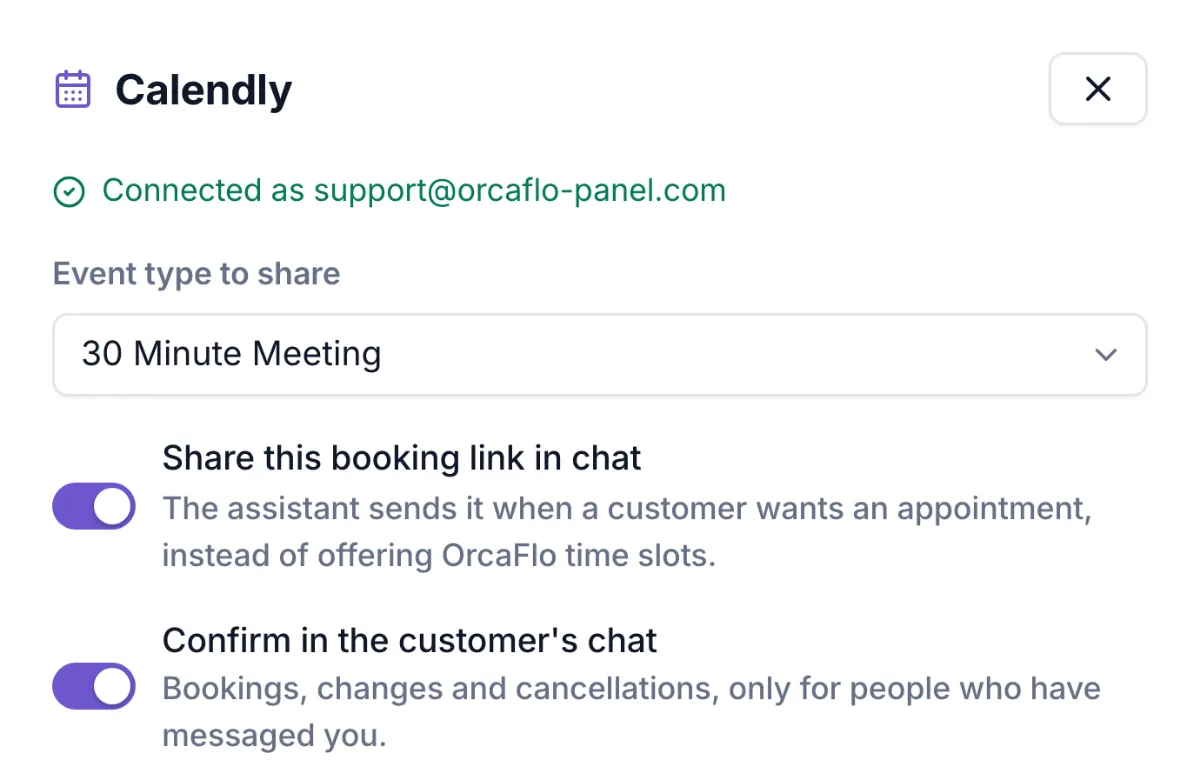
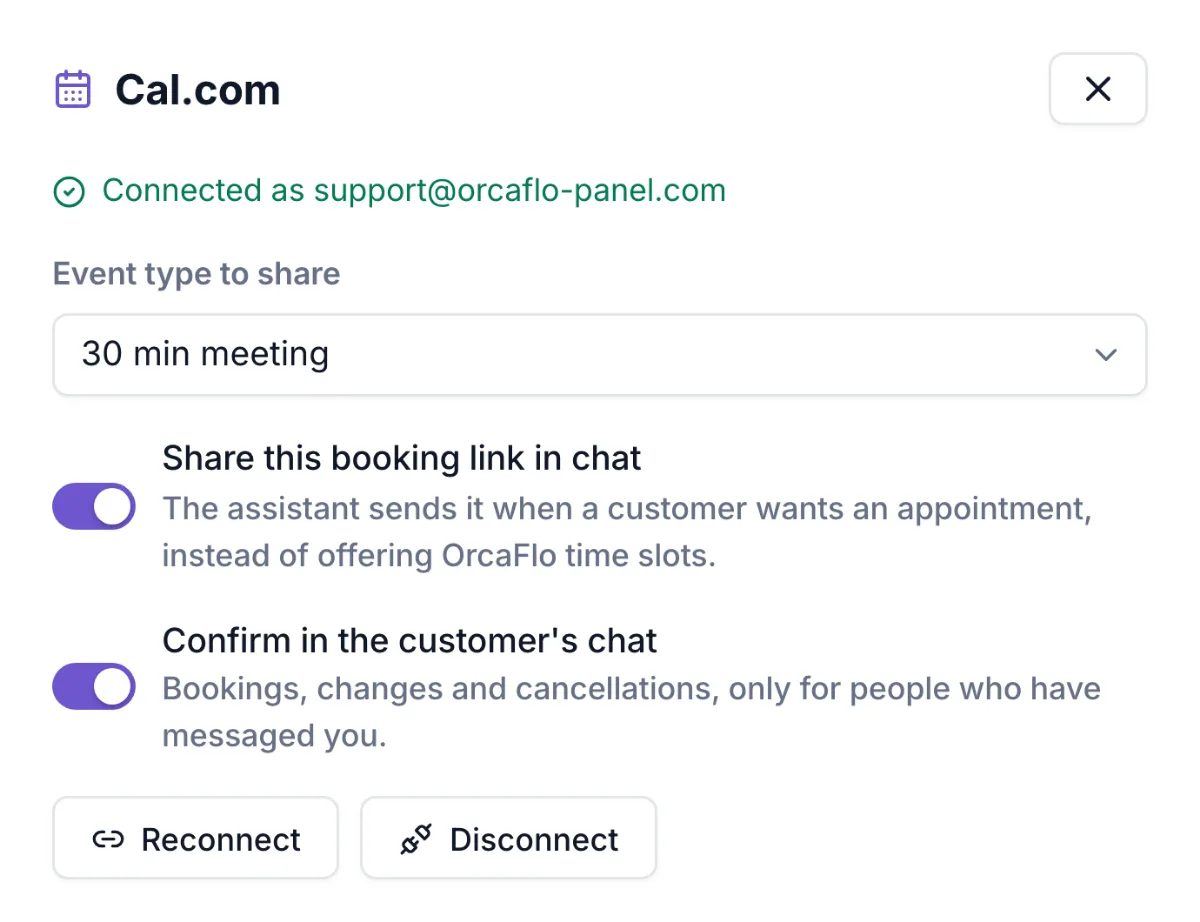
Under Event type to share, choose the event the assistant should send (for example “30 min meeting”). Keep Share this booking link in chat and Confirm in the customer’s chat switched on.
What your customers see
When someone asks for an appointment, the assistant sends a link to your Calendly or Cal.com page. The link is personal to that chat, so when they book, the appointment appears on their conversation in OrcaFlo and you get a notification.
They also get a short confirmation in the same chat, for example “You’re booked: Thu 1 Oct, 9:00 AM (Dubai time) · 30 min meeting”, and another message if the booking is moved or cancelled. Calendly or Cal.com still sends its own confirmation email.
If they ask the assistant to cancel, OrcaFlo cancels it in Calendly or Cal.com for them. To move a Calendly booking, the assistant sends their own reschedule link. Cal.com bookings can be moved right in the chat.
Limits
Chat confirmations only go to people who have already messaged you. Someone who books with a new phone number is added to Appointments, but OrcaFlo never messages them.
Calendly plans: on a paid Calendly plan, bookings appear instantly. On Calendly’s free plan, OrcaFlo checks for new bookings every 10 minutes.
Cal.com sign-in is coming soon: it opens once Cal.com has approved OrcaFlo’s app, and until then the Cal.com card says so. Calendly and Google Calendar work now.
Cal.com: if you add your first event type after connecting, open Integrations → Cal.com and click Refresh. Using your own self-hosted Cal.com server? Click Self-hosted Cal.com? and connect with your server address and an API key; that works now.
If you don’t see this in your panel yet, email support@orcaflo-panel.com and we’ll switch it on for your business.
Questions
If you already love your Calendly or Cal.com setup, connect it. Otherwise OrcaFlo’s own booking (your opening hours, plus Google Calendar if you like) lets the assistant offer and book times right inside the chat, with no link to click.
Yes: switch off Confirm in the customer’s chat in the Calendly or Cal.com settings. Bookings still show up in OrcaFlo.
Open Integrations → Calendly (or Cal.com) → Disconnect. OrcaFlo removes its access and stops sending the link.