 orca.flo
WhatsApp templates (official WhatsApp API)
On WhatsApp’s official API you can reply freely for 24 hours after a customer’s last message. After that, only a message template that Meta has approved can be sent. OrcaFlo lets you write templates, sends them to Meta, and shows you how each one is doing.
Updated
Coming soon
Coming soon: this works once OrcaFlo’s Meta approval is complete. Email support@orcaflo-panel.com to be told first.
Today your number is linked with a QR code, so none of this applies: broadcasts and follow-ups work as usual. The templates section only appears once a number is connected through the official API.
Create a template
Open it
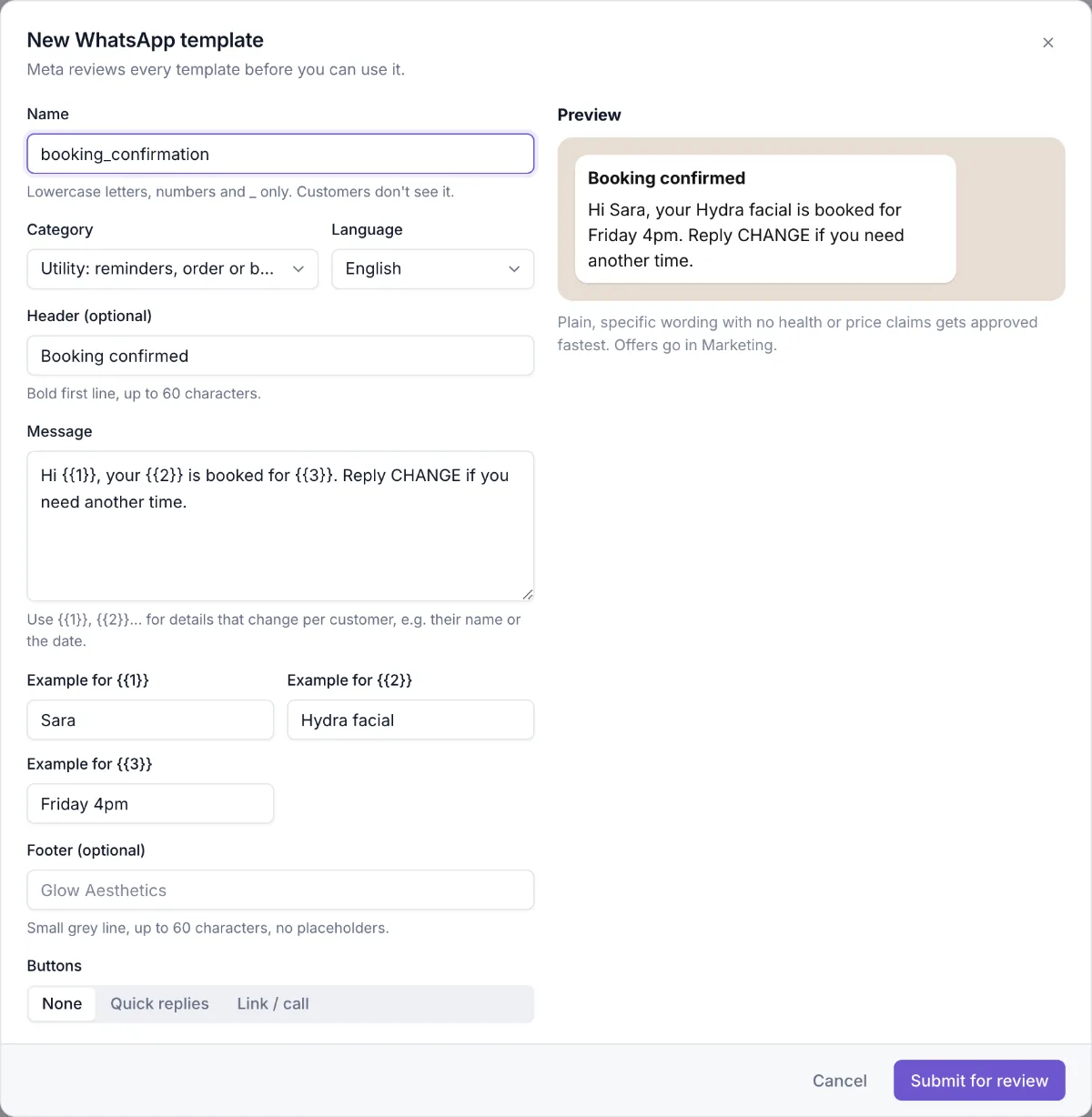
In Channels, the WhatsApp Business Platform (official API) card has a WhatsApp templates section. Click New template.
Name, category and language
A name only you see (lowercase, like appointment_reminder). Utility is for updates about a booking or order; Marketing is for offers and follow-ups. Pick English or Arabic.
Write the message
An optional bold Header, the Message, and an optional small Footer. Use {{1}}, {{2}}… for details that change per customer, like their name or the date, and give an example for each: Meta reviews the template with your examples.
Add buttons (optional)
Up to 3 Quick replies (for example “Yes, confirm” and “Reschedule”), or up to 2 buttons that open a link and 1 that calls you.
Check the preview and submit
The preview on the right shows what the customer will see. Click Submit for review. OrcaFlo checks Meta’s rules first and tells you straight away if something needs fixing.
Follow Meta’s review
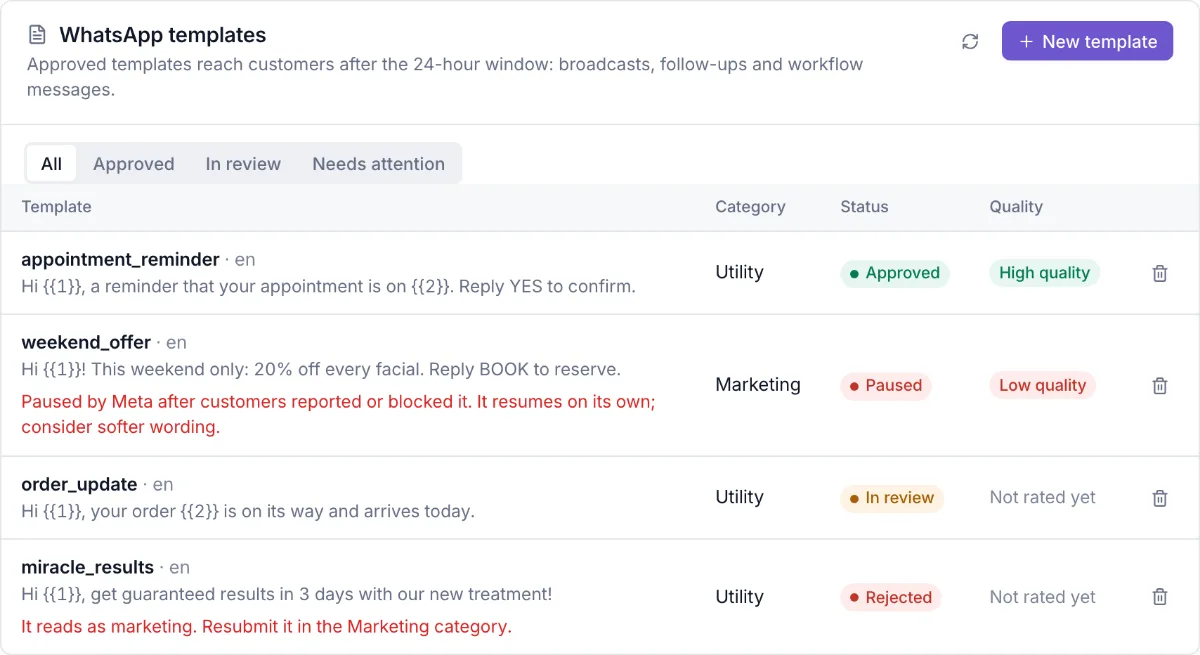
Each template shows its Status: In review (usually minutes, sometimes up to a day), Approved (ready to use), Rejected (with Meta’s reason in plain words, for example “It reads as marketing. Resubmit it in the Marketing category.”), or Paused (Meta stopped it for a while after customers reported or blocked it).
Quality shows how customers react to it: high, medium or low. Low quality can lead Meta to pause a template, so if one drops, soften the wording or send it less often. Use the filters Approved, In review and Needs attention to find them quickly.
Use your templates
In a broadcast
In a new broadcast, choose WhatsApp template (approved by Meta) so it reaches everyone, even people who last wrote weeks ago.
For automatic follow-ups
Choose a template for each automatic follow-up (follow-up sequence, after-sale, “contact me on…”, first message to form leads). Without one, that follow-up is skipped after 24 hours instead of being sent.
In a workflow
Add a Send WhatsApp template step to send it from a workflow, for example a reminder the day before an appointment. On a number linked with a QR code, the step sends the same text as a normal message.
Good to know
What the customer receives
A normal WhatsApp message from your business, with your details filled in and any buttons underneath. If they reply, your assistant (or your team) carries on the chat as usual.
What Meta charges
Meta bills WhatsApp message fees to the payment method on your WhatsApp Business account, not through OrcaFlo. Templates are charged per delivered message, by category and country. Since 1 October 2026, replies inside the 24-hour window are free only for the first 1,000 a month per number, and utility templates sent inside an open window are charged too. A chat that starts from a click-to-WhatsApp ad is free for up to 7 days. Current UAE rates in WhatsApp Business API pricing in the UAE.
Approved fastest
Plain, specific wording with no health or price claims. Don’t start or end the message with a placeholder.
Deleting
Delete a template you no longer use from the list. Broadcasts and follow-ups that used it stop sending it.
Questions
No. Within 24 hours of a customer’s message, your assistant and your team reply normally.
Usually a few minutes, sometimes up to a day. The status changes in OrcaFlo on its own; press the refresh button to check.
Read the reason shown under it, fix the wording (or the category) and submit it again as a new template.
No. Moving to the official API keeps the same number, and you keep using the WhatsApp Business app on your phone.