 orca.flo
Schedule a broadcast and see who replied
A broadcast sends the same message to many customers at once, for example an offer or a holiday opening time. You can send it now or schedule it, choose who answers the replies, and see the result for every person.
Updated
Send or schedule a broadcast
Open Broadcasts
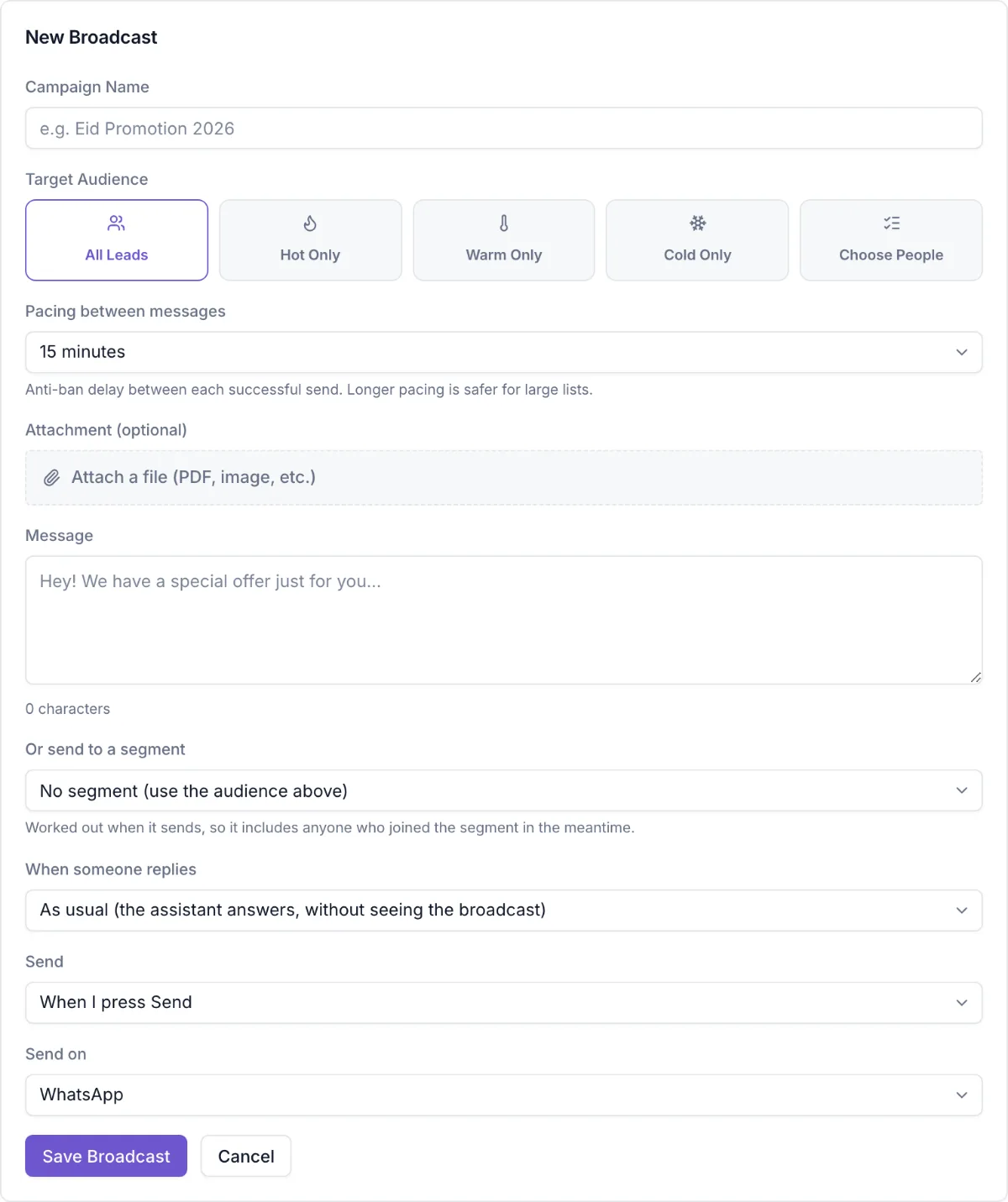
In the left menu, open Broadcasts and click New broadcast.
Write the message
Give it a Campaign Name (only you see it) and write the message. You can attach a photo or a file.
Choose who gets it
Under Target Audience pick all leads, hot, warm or cold leads, or Choose People. Or, under Or send to a segment choose a saved segment from Contacts. A segment is worked out when the broadcast sends, so it includes anyone who joined it in the meantime.
Choose when
Under Send, When I press Send keeps it as a draft until you press Send. At a set time sends it on its own at that time (in your device’s time zone). You can cancel a scheduled broadcast with Cancel schedule until it starts.
Choose who answers replies
Under When someone replies: the assistant answers knowing what the broadcast said, the assistant answers as usual, or a person answers (the assistant stays quiet for those chats).
See the results
Open Results
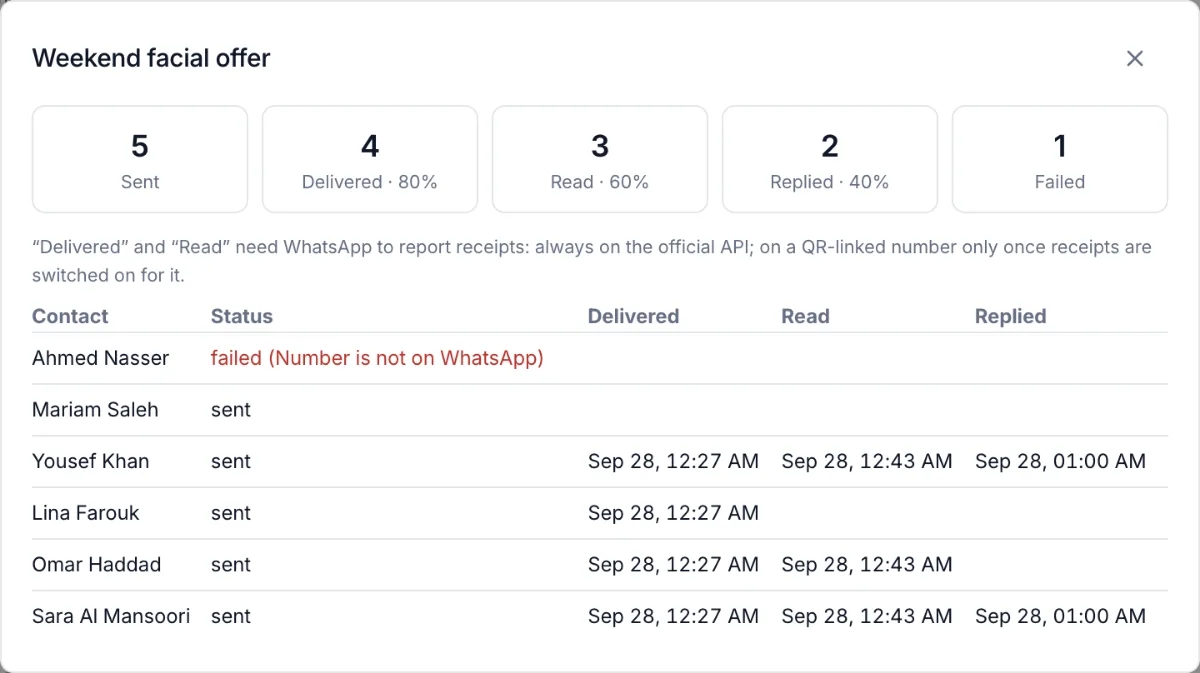
On a sent broadcast, click Results. You see how many were sent, delivered, read and replied, and the status for every person.
Resend to the ones that failed
If some messages failed (for example a number that isn’t on WhatsApp), click Resend failed. Only the people it failed for get it again, never twice.
Good to know
Paced sending
Messages go out one at a time with a pause in between (Pacing between messages, 15 minutes by default). Longer pacing is safer for big lists and keeps your WhatsApp number safe.
People who never messaged you
Contacts who never wrote to you (for example imported ones) are left out unless you tick the box to include them. WhatsApp often blocks numbers that message people who never wrote first.
Delivered and Read
These need WhatsApp to report receipts: always on the official WhatsApp API; on a number linked with a QR code, once receipts are switched on for it. Someone who turned off read receipts shows as delivered, not read.
Not seeing these options?
If you don’t see this in your panel yet, email support@orcaflo-panel.com and we’ll switch it on for your business.
Questions
Click Cancel schedule, change it, and schedule it again.
That only shows on numbers connected through WhatsApp’s official API. See WhatsApp templates.
Yes, unless you chose “A person answers”. It knows what the broadcast said when you choose that option.